

Getting Started With Gmail Organization
Learn how to set up labels, filters, and folders so your inbox stays manageable.
Don't let attachments slow down your inbox. We show you how to handle large files, compress documents, and use cloud links instead of attachments.
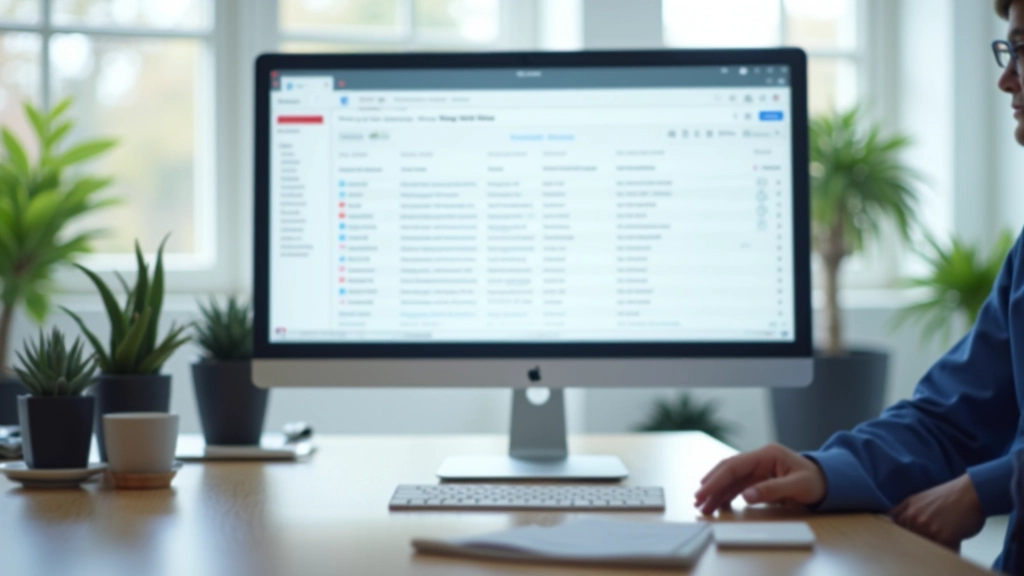
Email attachments pile up fast. A couple of PDFs here, a spreadsheet there, and suddenly your mailbox is bloated. We're not just talking about storage space — it's about speed, security, and making your inbox actually usable.
The good news? There's a better way. Whether you're dealing with one large file or dozens of smaller ones, the techniques in this guide will help you stay organized. You'll learn when to compress, when to use cloud links, and how to keep attachments from becoming a headache.

Every email provider has limits. Gmail allows up to 25 MB per message, Outlook goes to 20 MB, and some corporate systems are stricter. It's not just about hitting a hard wall — larger attachments slow down delivery and make it harder for recipients to access their mail.
Beyond the size limit, there's the practical side. A 20 MB PDF takes time to upload, time to download, and eats into your cloud storage quota. If you're sending five emails a day with 15 MB attachments each, you're looking at 375 MB gone by the end of the week.
Here's what you need to know: check your provider's limits first. Then ask yourself — does this file really need to go in the email, or could it live somewhere else?
This guide covers general email attachment practices and cloud storage concepts. Your specific email provider, workplace policies, and security requirements may differ. Always follow your organization's guidelines for handling sensitive documents. When in doubt, check with your IT department or email administrator about the best practices for your situation.

Compressing files is straightforward. On Windows, right-click any file or folder and select "Send to" → "Compressed folder." On Mac, right-click and choose "Compress." This creates a ZIP file that's typically 30-50% smaller than the original, depending on file type.
Image files compress especially well. A folder with 20 photos might go from 150 MB down to 60 MB. Documents and spreadsheets compress less dramatically — maybe 10-20% smaller. Video files barely compress at all, which is why they're the worst candidates for email.
Pro tip: Don't compress already-compressed files. PDFs, JPEGs, and MP3s won't get much smaller. Focus on collections of documents or raw image formats. And always name your ZIP files clearly — "Client_Proposal_June2026.zip" beats "Archive.zip."
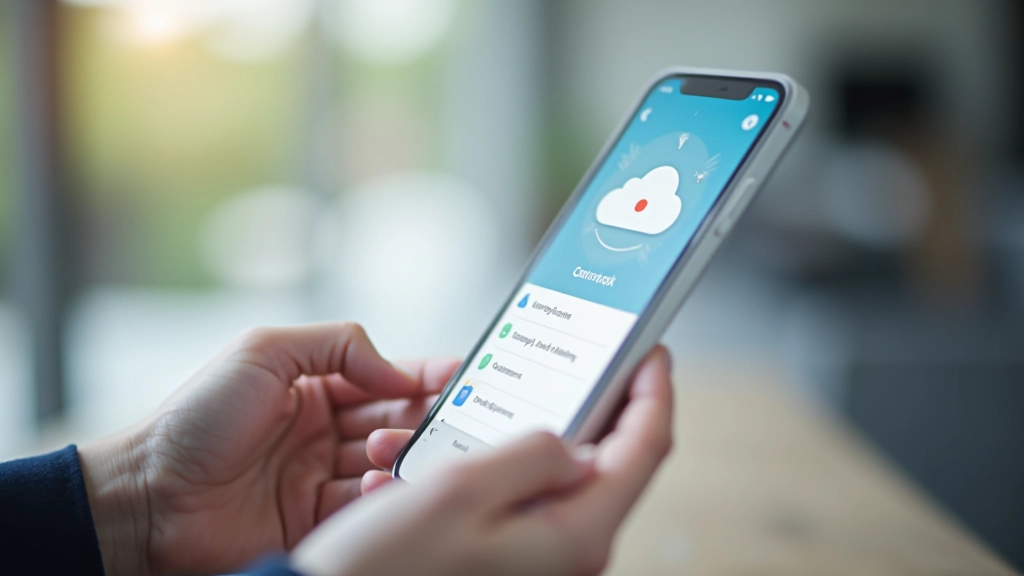
This is the real game-changer. Instead of attaching a file, upload it to Google Drive, OneDrive, or Dropbox and send a link. It's faster, more secure, and keeps your inbox lean. Recipients can access the latest version without downloading multiple copies.
The workflow is simple. Upload your file to cloud storage, right-click it, and select "Get link" or "Share." Set permissions (view-only is safer for sensitive docs), copy the link, and paste it in your email. Done. No attachment, no size limits, no storage quota hit.
For team projects, this method is essential. Instead of sending Version_3_FINAL_v2.docx back and forth, everyone edits the same document in the cloud. Changes happen in real-time, and there's no confusion about which version is current. You'll save hours of version control headaches.
Security-wise, cloud links are often better. You can revoke access anytime, set expiration dates, and track who viewed the file. Try doing that with an email attachment.
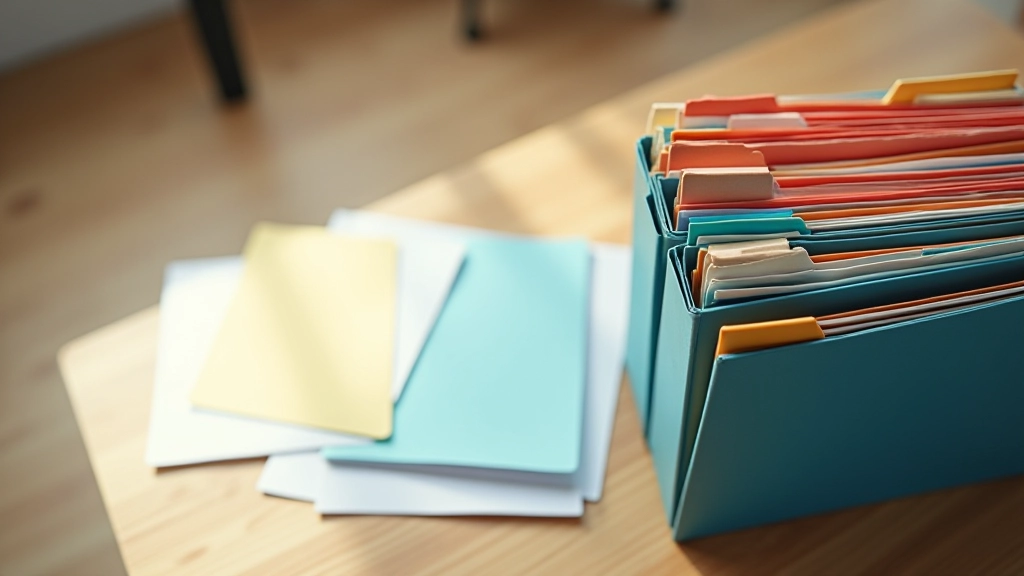
A good organization system prevents attachment chaos. Create folders in your email by project, client, or time period. Gmail's labels work well — you can apply multiple labels to one email, making it findable from different angles.
For attachments specifically, use a naming convention. "2026-07-31_ClientName_ProjectType_Final" tells you the date, who it's from, what it's about, and whether it's final. When you're searching six months later, this clarity saves time.
In your cloud storage, mirror this structure. Create the same folders online that you use in email. This keeps everything consistent and makes collaboration easier. Team members know exactly where to find things because the structure makes sense.
Know your email provider's attachment size limits before you send. Most allow 20-25 MB, but verify your specific service.
ZIP files reduce size by 30-50% for most documents and image collections. Skip compression for already-compressed formats.
Cloud storage links are faster, more secure, and work better for shared projects. Skip the attachment and share a link instead.
Use consistent naming and folder structures in both email and cloud storage. This makes finding files later much easier.
Managing attachments isn't glamorous, but it saves you time, storage space, and frustration. Start with one technique — maybe cloud links — and add the others as they become habit. Within a few weeks, your inbox will feel faster and your workflow cleaner.

Editorial Team
Written by the arizonahealingroom Editorial Team, focused on clear, practical guidance for email and cloud storage essentials.
Learn how to set up labels, filters, and folders so your inbox stays manageable.
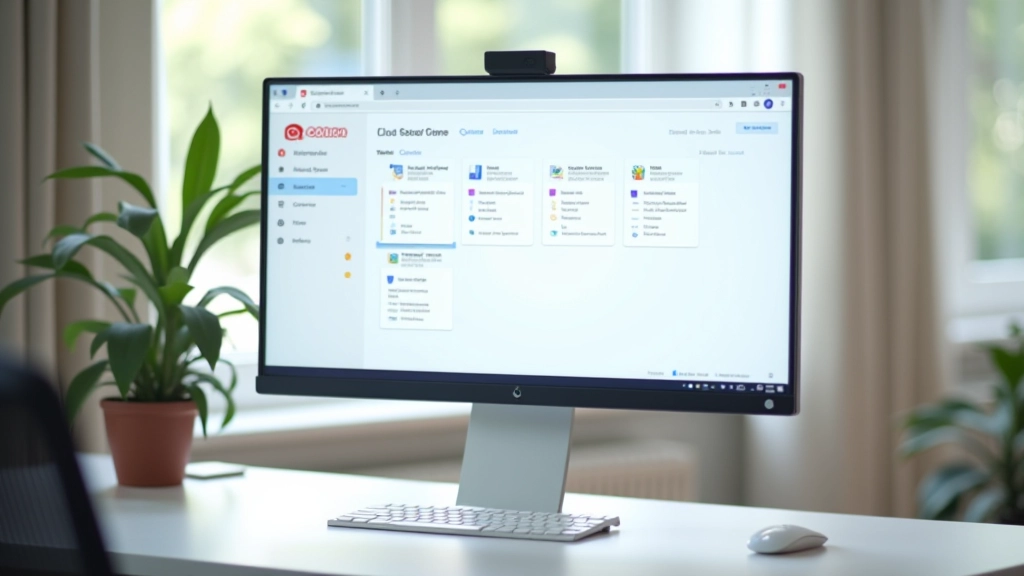
Understand the difference between local storage and cloud backup. This guide covers the basics and best practices.
Strong passwords and two-factor authentication aren't optional anymore. Learn the essentials of account security.